Every pilot has the data. That's the strange part. Years of legs, logged to the day, sitting in an app that is superb at currency and totals and completely uninterested in showing you what a career looks like from above.
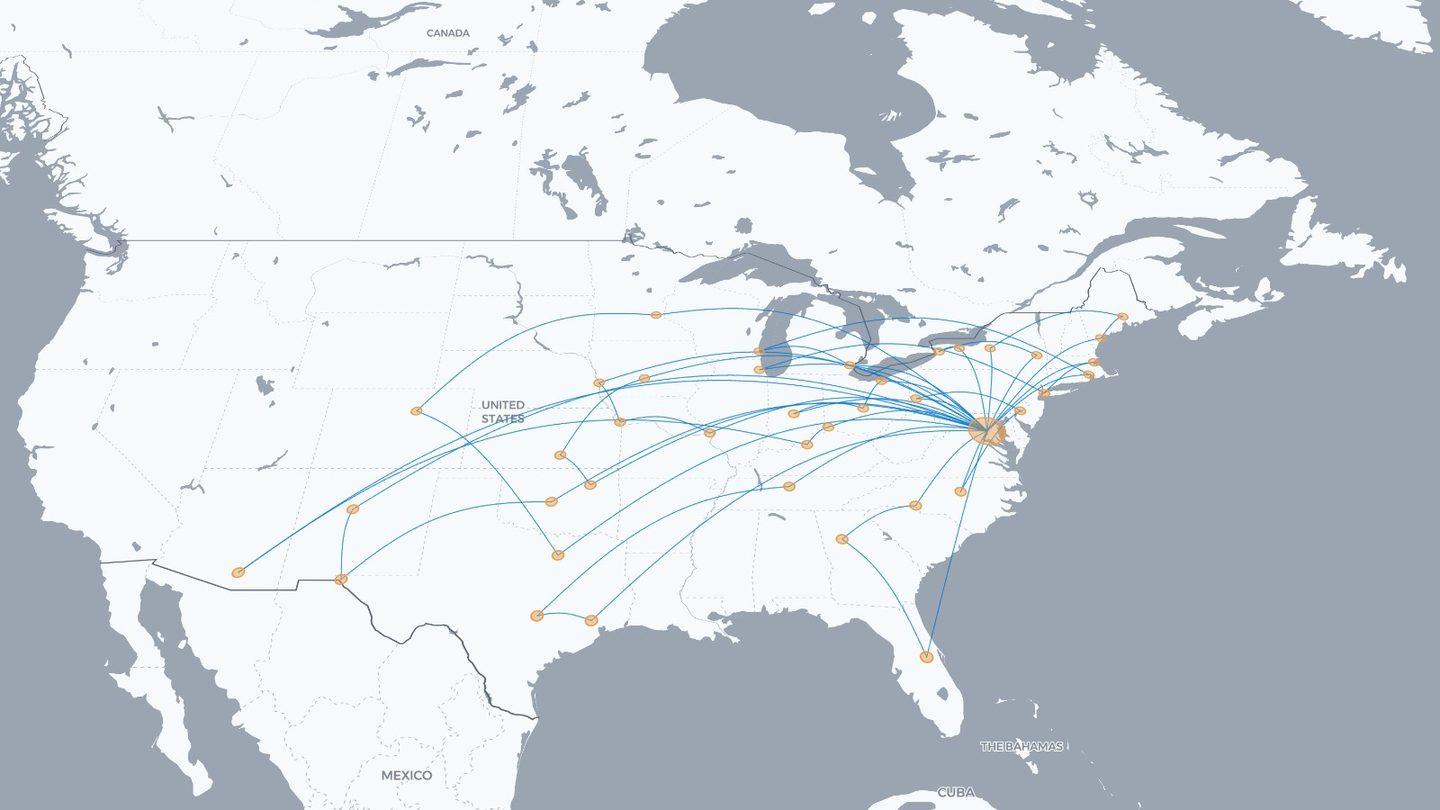
Built to take a real logbook
Most flight-map tools quietly assume forty holiday flights. A working logbook is a different animal, and a few things had to change to handle one:
- Hundreds of legs at once. A 586-leg import draws without complaint.
- Replay you can actually finish. The animation speed goes far enough up that a multi-year logbook plays back in a reasonable time instead of four minutes.
- Airport dots that don't take over. Dot size scales logarithmically past a certain visit count, so the base you've flown to 200 times stays readable next to the field you saw once.
- Clean convergence. Sixty routes meeting at one field meet at its centre, cleanly, at every zoom level.
- GA fields. The airport database is the full one — roughly 31,000 fields — and accepts ICAO idents directly, so KTEB works without translating it to TEB first.
Uploading your logbook
Every serious logbook app exports. ForeFlight, LogTen Pro, Garmin Pilot, MyFlightbook and most airline crew tools will all hand you a CSV of your flights — that export is all you need.
-
Get your legs into a list
Export your logbook to CSV from whichever app you keep it in. You only need four or five columns out of it: date, departure, destination, aircraft type, and (if you want the colours) the operator. Everything else — times, approaches, night, instrument — can stay behind.
-
Convert it to a flights file
RoutesFlown imports a JSON file. The format is deliberately small — five keys, two of them required — so converting from a spreadsheet or a statement takes one step.
-
Import it
Open the app, scroll to the bottom of the left panel, and click Import. Pick your file. Every leg draws at once, and the counters fill in immediately.
-
Keep it
Sign in with just an email address — no password — and the map syncs to your other devices. Until you do, everything stays in your own browser.
The file format
Five keys, two required. Small enough that converting a logbook CSV is a single step.
flights.json — the shape the Import button reads
[
  {
"from": "KTEB",
"to": "KASE",
"date": "2026-02-14",
"airline": "NetJets",
"aircraft": "Challenger 350"
  },
  {
"from": "KASE",
"to": "KAPA",
"date": "2026-02-17",
"airline": "NetJets",
"aircraft": "Challenger 350"
  }
]
from and to are the only required fields. Everything else is optional: leave date out and the leg still draws, it just won't sit on the timeline. Codes can be IATA (ASE) or ICAO (KASE) — both resolve to the same field.
Turning a CSV or a statement into that file
# Paste your rows into any AI assistant with this:
Convert the flight records below into a JSON array.
One object per leg, with the keys:
  from, to, date, airline, aircraft
- from / to  = departure and arrival airport codes, uppercase
               (IATA or ICAO, whichever the source uses)
- date       = YYYY-MM-DD
- airline    = the operator name, e.g. "NetJets"
- aircraft   = the type, e.g. "Challenger 350"
Return only the JSON, nothing else.
Then paste my rows below.
Save what comes back as flights.json, then hit Import. If a code is wrong or a field isn't in the database, that one leg simply won't draw — the rest of your map is unaffected, and you can fix it in the flight list.
Things worth doing with crew data
- Keep the legs separate. Don't collapse a four-leg day into an origin and a destination — the chaining is exactly what makes the map read like a real schedule.
- Use one date format. YYYY-MM-DD throughout. Mixed formats are the single most common reason a timeline comes out scrambled.
- Fill in the aircraft type. It drives the most-flown-aircraft stat, and on a long logbook that number is a decent summary of an entire era of your flying.
- Simulator and ground sessions don't map. Filter them out of the export before you convert, or they'll draw as zero-length legs.
- Import in chunks if you like. A year at a time is a perfectly good way to work, and it makes a bad date column obvious early.
If a leg doesn't appear, it's almost always the airport code — a typo, or a field that's logged under a company code rather than an ident. That single leg is skipped and the rest of the map is unaffected, so you can find it in the flight list and fix it there.
Where your flights live. Until you sign in, your map is stored in your own browser and never leaves the device. Signing in syncs it to your account so you can open it elsewhere. Nothing is connected to an operator, an airline, or a logbook service, and a map is private until you choose to share a link.
See your logbook drawn
Import an export and watch a career appear leg by leg. Free.
Open RoutesFlown →Keep reading: Map your private jet flights · How many flights have I taken?